Compiling The Source Code for Seamless3d Using the Free Microsoft Visual C++ 2008 Express Compiler
VC 9 express
Download the DVD that contains Visual C++ Express (as well as all the Express products) in a single image (ISO) file:
http://www.microsoft.com/express/download/ Be sure to download the Offline Install from the above URL so that you can reinstall it again and again in the future. After the ISO file has been downloaded, burn it onto a DVD Install VC9 by Inserting the DVD into the DVD drive, select the instalation for the C++ compiler and follow the prompts.
DirectX SDK
Download the DirectX SDK file from the Microsoft Site:
http://msdn.microsoft.com/directx/sdk
and install the exe set up file by double clicking on it and following the prompts.
VC++ Directories
To set VC9 to know where the DirectX header and lib files are we must:
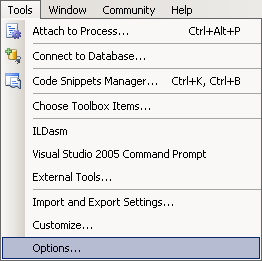
From the Tools menu select Options
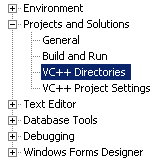
Expand Projects and Solutions and select VC++ Directories
Include files
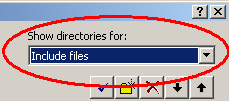
In the "Show directories for" drop down menu select "Include files"
add a new entry:
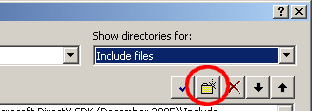
and add the full path to your DirectX SDK Include Folder, for example it will look something like:
C:\Program Files\Microsoft DirectX SDK (March 2009)\Include
Library files
In the "Show directories for" drop down menu select "Library files"
The Seamless3d source code can be compiled for Microsoft Windows or Linux and hopefully BSD and any Unix like operating system that supports BSD Sockets and POSIX threads.
The compilation has been tested using the following compilers:
- Visual C++ 2008 Express
- g++ compiler for Linux (SuSe 10.0) (both command line and KDvelop)
To compile using Visual C++ 2008 simply open the seamless3d_server.vcproj file and select Build -> Build Solution
The command for the g++ compiler is:
g++ seamless3d_server.cpp var.cpp -pthread -o seamless3d_server
To run in windows run the run_server.bat file
To run in linux use the command line:./seamless3d_server http://www.seamless3d.com
If you have trouble compiling I will be interested to hear from you (will be interested to hear if successful too :) )
Please post your questions and/or experience on the Seamless3d forum www.seamless3d.com/forum so that others can benefit.
If you want to join the Seamless3d forum just send an email to thyme@seamless3d.com using the title:
Registration Request for the Seamless3d Forum
and specify the user name you wish to use on the forum.
Your email address will be used for your account but will be hidden from others by default.
Everyone is welcome to join :)
Looking forward to hearing from you
Best wishes
thyme
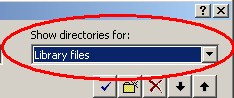
add a new entry and add the full path to your DirectX SDK Include Folder, for example it will look something like:
C:\Program Files\Microsoft DirectX SDK (March 2009)\Lib\x86
Add extra DirectX 8.1 Library and Include files that are no longer supplied in the DirectX SDK
Download extra-directx8.1.zip, unzip and copy the files from the lib folder into your DirectX SDK Lib folder and copy the files from the include folder into your DirectX SDK Include folder. Seamless3d Source FilesDownload the seamless3d modeller source zip file from the Seamless3d source code page.
unzip the files into a folder
zlib Files
Go to the zlib home site www.zlib.net
Half way down the page you will see:
"The current release is publicly available here:"
Download a file from this section that is the nearest country to you.
unzip the contensts of the file into a sibling folder of the seamless3d modeller source folder and name it zlib
Compile the Files
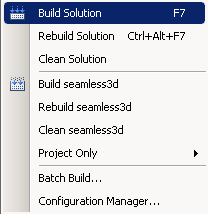
run VC9 and select from the file menu: open/project/solution Open the file seamless3d.vcproj from the seamless3d modller source folder from the build menu select Build Solution
from the debug menu select Start Debugging
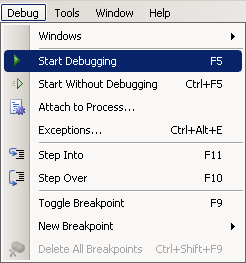
and seamless should run as a result in Debug mode (slower than Release mode) To compile seamless using Release mode so that the code is optimized for speed and size go to the Build menu and select:
configuration manager in the active solution configuration drop down menu select: Release
now when you build it will build the same seamless that I uploaded for users but for developing scripts we will want to compile seamless in debug mode so that we can single step code and inspect the values of variables.
Copyright © 2000-2009 Graham Perrett thyme@seamless3d.com